
The Five-Minute Check Before You Add Any Shopping Extension
How to check if a shopping browser extension is safe
Yes, you can keep your coupon finder, price tracker and cashback tool without handing over your browsing life. The check takes about five minutes: read the store listing, read the permissions prompt, work out who pays for the tool, and set its access level before you use it.
What these tools can see is already covered in Are Browser Shopping Assistants Safe?, so this piece skips that and goes straight to what you do about it. Consider it your pre-checkout routine for the extension itself. 🛒
Can you keep your shopping extensions and your privacy?
You can, because most of the risk comes from two things you control. One is which extensions you install. The other is how much access you leave switched on afterwards.
A good extension is a small tool doing one job on the pages where that job happens. A risky one wants to watch every page you open, including your email, your bank and the late-night search you would rather keep to yourself. The routine below sorts one from the other quickly.
Here is how the five minutes break down, roughly.
- One minute on the store listing
- One minute on the permissions prompt
- Two minutes on the maker and the money
- One minute on settings after you install
Those timings are only a guide. If something looks off in the first minute, you can stop there and save the other four.
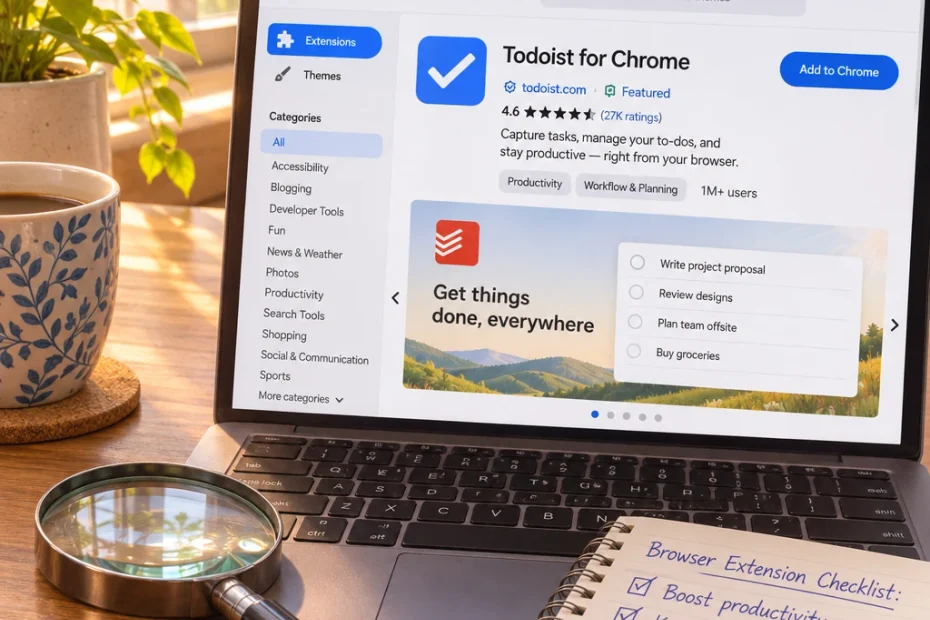
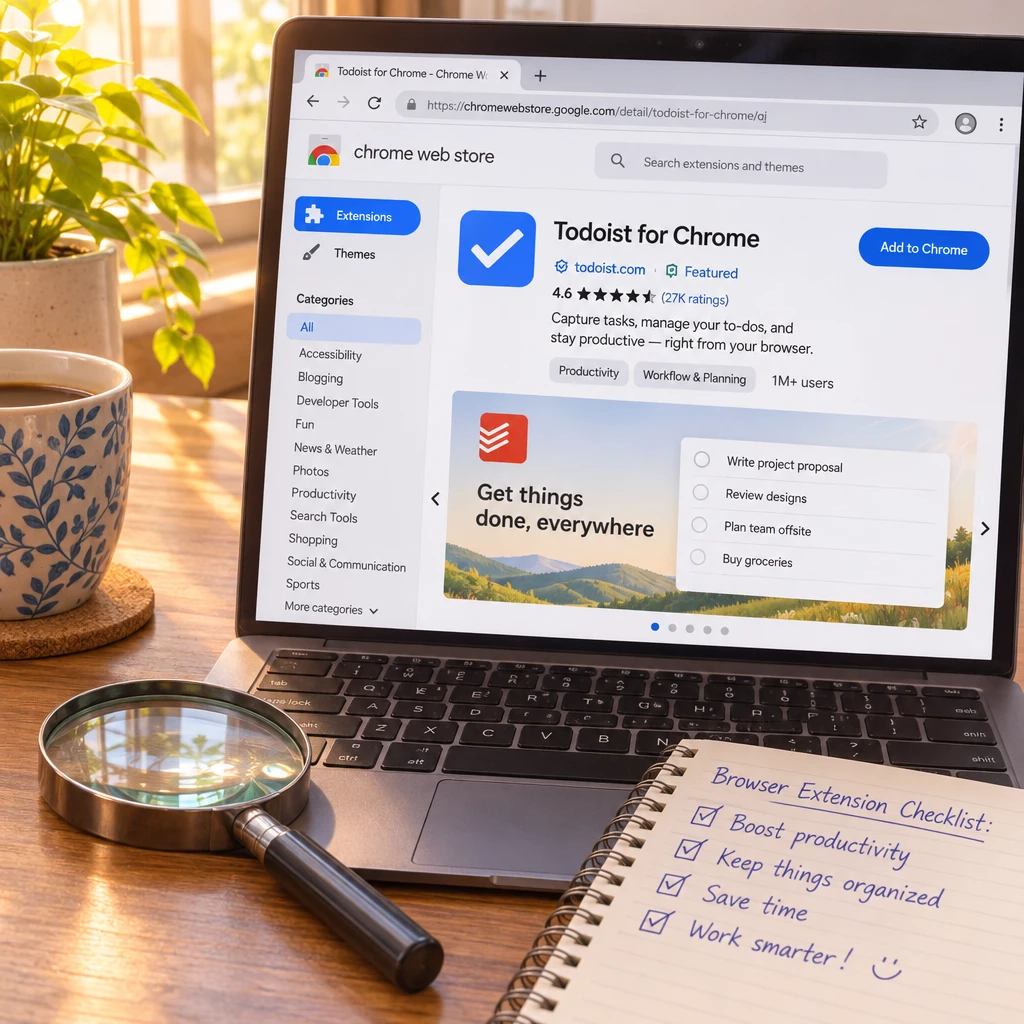
What should you look at on the store listing before you click Add?
The listing is a free background check, and most people scroll straight past it to the Add button.
Start with the publisher. A real company usually has a website you can find independently, with a support address and a named business behind it. A listing with a vague developer name and no website deserves a pause. Search for the tool’s name on its own and make sure the link you are about to use leads to the real thing, because copycat extensions with near-identical names do exist.
Then check these items.
- The last update date. A tool nobody has touched in years may carry unfixed problems. A tool updated this month is at least being looked after.
- The reviews, sorted by most recent. Five-star averages can be old news. Recent reviews show what the extension does today, and a sudden run of complaints about pop-ups or strange redirects is a clear warning.
- The middle reviews. Three-star reviews tend to be the most specific and the least emotional.
- The privacy section and policy link. Many stores ask developers to state what data they collect. If there is no policy at all, that tells you plenty.
Open the privacy policy and use your browser’s find function to search for “sell”, “share”, “partners” and “browsing history”. Reading the sentences around those words takes about thirty seconds and tells you more than the marketing copy does.
How do you read a permissions prompt and stay awake?
When you click Add, the browser shows a prompt listing what the extension wants. The wording that matters most is usually some version of “Read and change all your data on all websites.” In plain terms, the extension can see and alter every page you visit.
That is not automatically sinister. A coupon finder has to look at shopping pages to spot the promo code box, so it needs some page access. The real question is whether the access matches the job.
Tool type | What it reasonably needs | What should raise a question |
|---|---|---|
Coupon finder | Access to shopping and checkout pages | Reading your full browsing history, or what you copy and paste |
Price tracker | Access to product pages | Access to sites that have nothing to do with shopping |
Cashback tool | Knowing when you land on a partner retailer, plus a login for your account | Constant access to everything, with no way to narrow it |
Another good sign is when the extension still works if you narrow its access to specific sites. A tool that falls apart the moment you limit it to shopping sites is telling you something about its priorities.
If the prompt asks for more than the job needs, close it and pick a different tool. Plenty of coupon finders exist, and none of them is irreplaceable.
Who made it, and how does it pay for itself?
Free extensions still cost money to build and run, so someone is paying. Your job is to find out who, because the answer shapes how the tool treats you.
The most common models look like this.
- Affiliate commission. You buy something after the extension helps, and the retailer pays the extension a cut. Cashback tools share part of that cut with you. This is a normal arrangement and not a problem in itself.
- Data. Some tools earn money from information about what users browse or buy, often described as anonymised or aggregated. A trustworthy tool states this clearly in its policy. A tool that stays silent while asking for broad access deserves suspicion.
- Paid upgrades. A free tier with a paid plan is usually the least tangled model, since you are the customer.
Affiliate links come with one more point worth knowing. Some coupon tools have drawn criticism for taking the affiliate credit at checkout even when they did not find you a working code. You can test this without reading anything. If a tool says it “found” savings and the code does nothing, your trust in it should drop a notch.
Ask yourself one plain question. If I cannot tell how this company makes money, is it me? 🧐
Which settings should you change right after you install?
The defaults are set for the developer’s convenience. Spend a minute changing them for yours.
- Narrow the site access. Most browsers let you open the extension’s details and choose between access on all sites, access on specific sites, or access only when you click it. Pick “on click” or specific shopping sites wherever the tool still works.
- Leave private windows off. Extensions normally stay out of private or incognito windows unless you allow them. Leave that switch where it is.
- Open the extension’s own options page. Look for toggles about personalised offers, analytics, usage data or “help us improve”. Switch off whatever the tool does not need to function.
- Skip the sign-in with your main account when you can. If a cashback tool needs an account, consider a separate email address for it.
- Pin it, or hide it. If you only want the tool at checkout, you do not need it sitting in your toolbar all day.
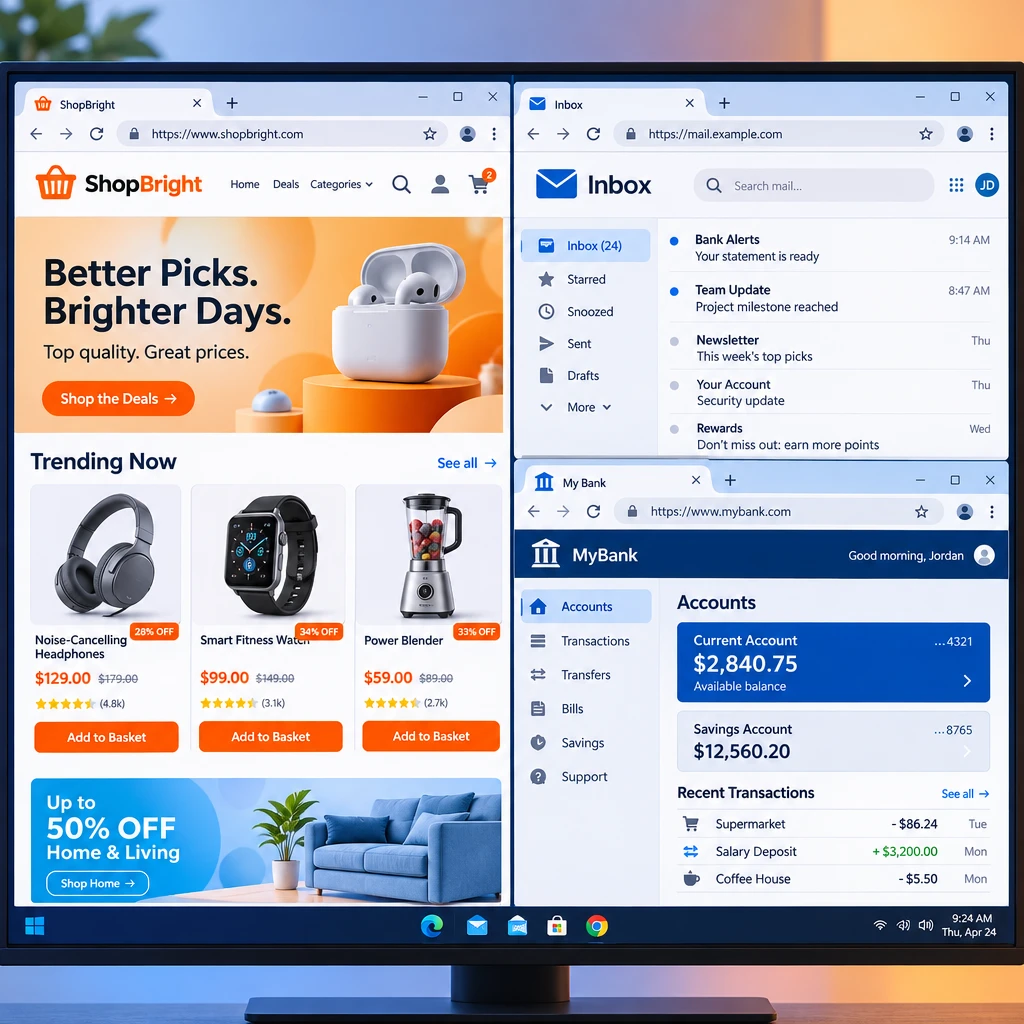
One bigger move is worth a mention. Create a separate browser profile just for shopping and install your extensions there. Your banking, email and work stay in a clean profile with no shopping tools anywhere near them. It takes a couple of minutes to set up and removes most of the worry about what a tool might glimpse on the wrong page.
How do you get the same savings with fewer extensions?
Every extension you add is another thing to vet, update and trust. Most shoppers need fewer than they have.
Start by giving each job to exactly one tool. One coupon finder is plenty, because two of them fighting over the same checkout box helps nobody. One price tracker is enough too, and the retailers you buy from most may already offer their own price alerts and wishlists that work without any install.
Then look at what needs no extension at all.
- Sign up for a retailer’s email list using a throwaway address, and wait for the welcome discount.
- Leave an item in your cart or wishlist and see whether a price drop notification arrives.
- Search the shop’s name plus “promo code” yourself when the purchase is big enough to justify thirty seconds.
- Compare the price across two or three stores before you buy, with no tool at all.
I have gathered more of those no-install tricks in Save Money Online Shopping, so you can see how far you get before you add anything.
An extension should earn its place by saving you more than the hassle and risk it brings. If you cannot remember the last time one saved you money, it has not earned it.
How do you run the quarterly clean-out?
Extensions change over time. They get updated, sold to new owners and given new permissions, so the one you vetted last year may not be the one running today. Put a reminder in your calendar every three months and spend ten minutes on this list. With the big sale weeks close, today is a sensible day to do the first one.
- Open your extensions page. Look at the full list, including anything you forgot you installed.
- Remove what you have not used lately. Be ruthless. You can always add it back.
- Check the site access on each one. Updates sometimes reset it to “all sites”. Narrow it again.
- Skim the newest reviews and the last update date. Look for complaints about new pop-ups, redirects or a change of ownership.
- Review the permissions. If an update asked for more than before, ask whether the tool still deserves it. Browsers often flag this, and the prompt is worth reading rather than clicking through.
- Check the extension’s own settings. Make sure the data sharing toggles you switched off are still off.
Ten minutes, four times a year, and your browser stays tidy and your shopping stays fun. That is a small price for savings you can actually trust.
Your turn
Tell me in the comments which shopping extension you’d like put through the five-minute check next, and come back to see it get the full treatment. 😏