
Your Browser Is the Best Shopping Tool You Already Own, So Use It Like One
You probably open your browser dozens of times a day, and you probably never configured it for shopping. It came with tab groups, profiles, a password manager, and autofill for cards and addresses, and most people use almost none of it. Meanwhile they download a new app every time a store asks.
The best browser tools for online shopping are mostly built in, free, and take an afternoon to set up. This article covers each one, what to check before you trust it, and where extensions and AI helpers fit. A short checklist at the end takes about 15 minutes.
The shopping tool you open forty times a day and never set up
A store or app can only show you its own products and prices. The browser sees everything you look at: every store, every review site, every comparison page. That makes it the one place where you can compare, save, and decide in a single spot.
Most of us treat it like a window we look through instead of a workbench. Tabs pile up until the titles shrink to a single letter, and a product you liked an hour ago is gone. Saved cards sit in whichever store asked first, and the same laptop that holds your tax spreadsheet also holds forty open sneaker pages.
A few settings fix all of that. None of them need technical skill, and the steps are nearly the same in Chrome, Edge, Firefox, and Safari, though menu names differ slightly. If you can’t find a feature, search the browser’s help page for its name.
Tab groups and a wish-list folder.
How to compare without losing your mind
Tab groups let you collect related tabs under one named, colour-coded label and collapse them out of the way. For shopping, make one group per purchase. Say you’re choosing a carry-on bag: create a group called “Carry-on,” and every bag page, review, and size-guide tab goes in it. When you stop for the day, collapse the group. When you come back, it’s all there.
Two habits make this work better:
- Open, then sort. Open every candidate in the group before judging any of them. Comparing five product pages side by side is faster than reading one, going back, and reading the next.
- Close losers immediately. If a bag has a zipper complaint in three reviews, close it. A group of four contenders is easier to decide from than a group of eleven.
Tabs are for deciding. Bookmarks are for keeping. Create a bookmarks folder called “Wish list” (or one per category, like “Home” and “Gifts“) and save anything you might want later. A product page held in a folder doesn’t nag you the way a sale email does, and you can come back when you’re ready.
A useful rule: when a group has been open for more than a week, either buy something, move the best candidate to the wish-list folder, or close the whole group. A tab group that never gets resolved is just clutter with a nicer label.
Bookmarks also help when you are watching for a better price. Save the page, check it on a set day, and you are doing the same job as a price-tracking app, minus the extra download. If you want more ways to cut what you spend, the post on how to save money online shopping covers the tactics themselves, and this one covers the tool you carry them out with.
A separate shopping profile, and why your work tabs will thank you
Most browsers let you create separate profiles. Each profile has its own bookmarks, history, saved logins, extensions, and settings. Think of it as a second browser that happens to live inside the first.
A shopping profile has a few concrete benefits:
- Your work stays clean. Your work profile won’t fill with product pages, and your shopping profile won’t have a meeting link buried under thirty tabs.
- Fewer random ads. Ad targeting leans on what a browser has recently visited. If you keep gift research in its own profile, the surprise present for a family member is less likely to show up as an ad on a shared screen.
- Extensions only where you want them. Shopping extensions can read the pages you visit. Installing them only in the shopping profile means they never see your work email or your bank.
- A tidy place to experiment. You can try a new coupon tool or review checker in one profile, and if you dislike it, remove it without touching anything else.
Setting it up takes about two minutes. Open the profile menu (usually your avatar near the address bar), choose Add profile, name it “Shopping,” and pick a colour so the window looks different at a glance. Sign in with the account you want to sync, and the bookmarks and tab groups you build there will be available on your phone too.
Let the browser handle passwords, cards and addresses (and what to double-check)
Typing a 16-digit card number is how typos, abandoned carts, and impulse purchases happen. Browsers can store passwords, payment cards, and addresses, and fill them in on checkout pages. They can also generate a long, unique password for each new store account. That matters because reusing one password across shops means one breached store exposes all of them.
Here’s what to verify when you turn it on:
- Lock the vault. Make sure your device requires a PIN, fingerprint, or password before the browser fills in a saved card. If anyone can pick up an unlocked laptop and check out, autofill works against you.
- Look at what’s saved. Open the password and payment settings and delete old cards, outdated addresses, and accounts for stores you no longer use.
- Check the security alerts. Many browsers can flag saved passwords that are weak, reused, or known to be in a data breach. Fix the flagged ones first, starting with any that also guard your email.
- Ask your card issuer about virtual numbers. Some banks and card issuers offer single-use or merchant-specific card numbers. If yours does, that is a safer option to store at lesser-known shops than your real card. Features vary by issuer, so check with them.
- Read the checkout page, not just the autofill. Autofill can put the wrong address in the shipping field or use a billing address you changed last year. Check the totals, shipping address, and delivery date before you click.
Also look for the padlock and an address that starts with https, and read the store name in the address bar. A well-made fake shop can look right but sit at an address that is slightly off. If a deal looks too good, search for the store’s name plus “reviews” in a new tab before entering anything.
Extensions worth a look.
Price tracking, coupons, review checks, and what to ask before installing any
Extensions are small add-ons that run inside your browser. Three kinds are useful to shoppers:
- Price trackers show a product’s past prices and can alert you if the price drops. They help you tell a real discount from a “sale” that is the usual price.
- Coupon finders try discount codes at checkout. Some work well and some only find expired codes, so treat any savings as a bonus.
- Review checkers analyse product reviews and flag patterns that suggest paid or repeated feedback. They give you an estimate, not a verdict, so read a few reviews yourself as well.
Extensions can see the pages you visit, and some can read what you type. Before installing any, ask:
- Who made it? Look for a named publisher with a website, a privacy policy, and a history. An extension with no contact information is a poor risk.
- What permissions does it ask for? A price tracker needs to read shopping pages. If it wants access to “all your data on all websites” with no clear reason, think twice. Read the permission prompt before you click Add.
- How does it make money? Some coupon and cashback extensions earn a commission when you buy through them. That is a legitimate business model, but you should know about it, and it helps explain why they may nudge you toward certain stores.
- Do recent reviews agree? Sort by newest. An extension can be sold to a new owner and change behaviour, and fresh complaints are the early sign.
- Is it worth the memory? Every extension adds a little load. Keep two or three that you actually use and remove the rest.
Install them only in your shopping profile, and review the list every few months. The post on the evolution of online shopping platforms gives useful background on why stores now compete on discounts and convenience, and why a neutral tool on your side of the screen helps.
Where AI helpers fit in
A browser sidekick that summarises reviews and compares options
A growing number of browsers and extensions include an AI helper that can read the page you are on. For shoppers, the useful jobs are specific:
- Summarise a long review page. Two hundred reviews become a short list of what people praise and what they complain about.
- Compare two or three products. Paste in the links or specs and ask for a table covering price, size, warranty, and common complaints.
- Pull out the fine print. Ask what the return window is, whether shipping is included, and what the warranty excludes.
- Draft questions for the seller. If a listing leaves out a detail, an assistant can help you word the message.
Use these tools as a first read, not a final answer. A summary can miss a detail or misstate one, so check anything that affects the purchase, such as dimensions, compatibility, or return terms, against the product page itself. Also remember that a helper reading a page may send that page’s content to a company’s servers, so keep it away from pages showing your account details, orders, or payment information.
Used that way, an AI helper saves reading time and leaves the judgment to you. The next post on this site looks at browser-based AI helpers for shoppers in more depth.
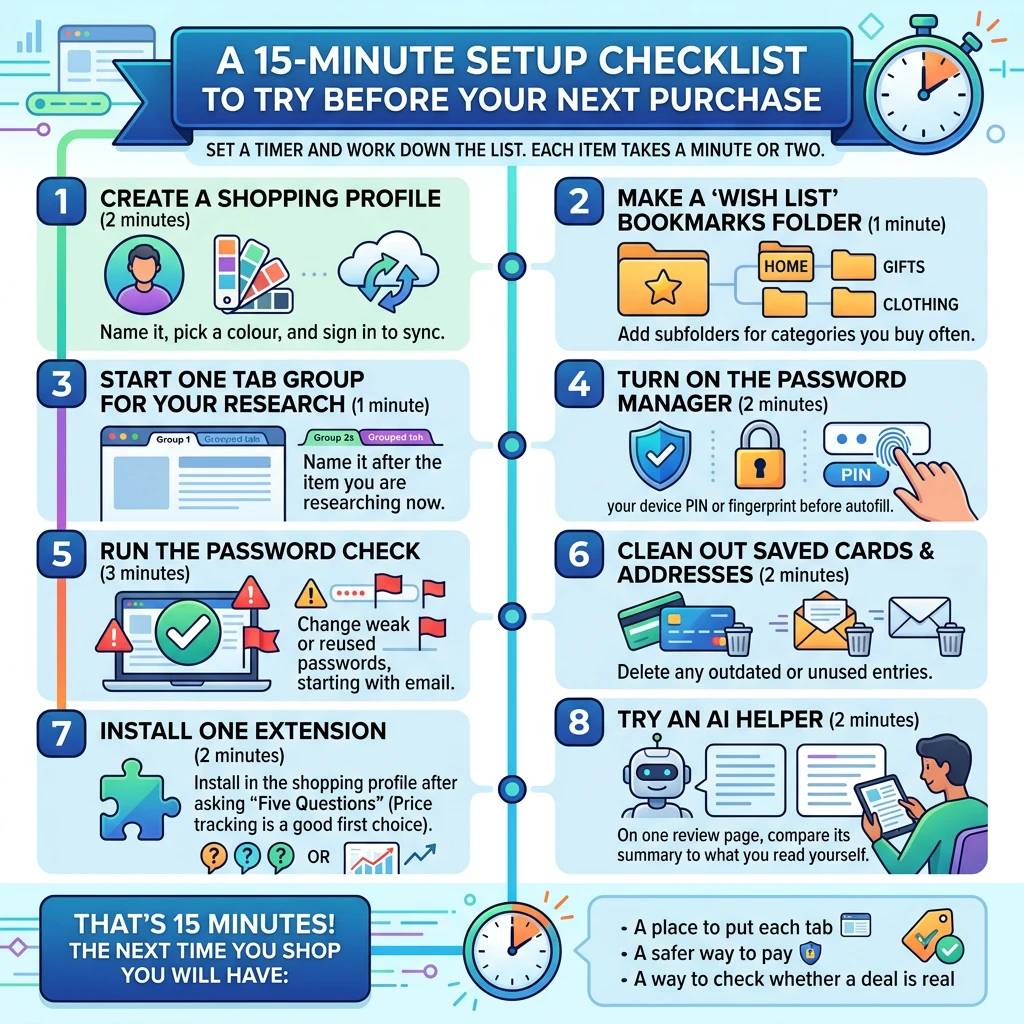
A 15-minute setup checklist to try before your next purchase
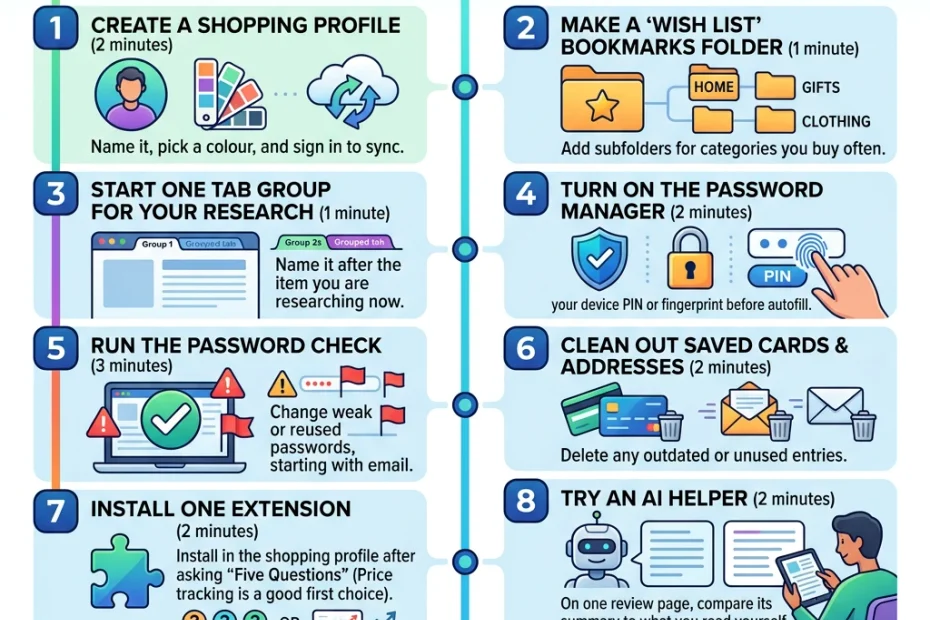
Set a timer and work down the list. Each item takes a minute or two.
- Create a Shopping profile (2 minutes). Name it, pick a colour, and sign in to sync.
- Make a “Wish list” bookmarks folder (1 minute). Add subfolders for categories you buy often, such as Home, Gifts, and Clothing.
- Start one tab group for the purchase you are researching now (1 minute). Name it after the item.
- Turn on the password manager and require your device PIN or fingerprint before autofill (2 minutes).
- Run the password check and change any that are flagged as weak or reused, starting with email (3 minutes).
- Clean out saved cards and addresses you no longer use (2 minutes).
- Install one extension in the shopping profile after asking the five questions above (2 minutes). Price tracking is a good first choice.
- Try an AI helper on one review page and compare its summary to what you read yourself (2 minutes).
That’s 15 minutes, and the next time you shop you will have a place to put each tab, a safer way to pay, and a way to check whether a deal is real.
Customer Service Experiences In Online Shopping on Amazon
Which browser habit has saved you the most time or money? Share it in the comments, because the best tips tend to come from readers. And bookmark this site, since the next post looks at browser-based AI helpers for shoppers.
Thank you for likes, shares and comments!
Crafted with chatGPT Language Models and Picsart