
(and What They Ask For in Return)
Best browser extensions to save money online shopping
What “automatic savings” really means (and where the magic stops)
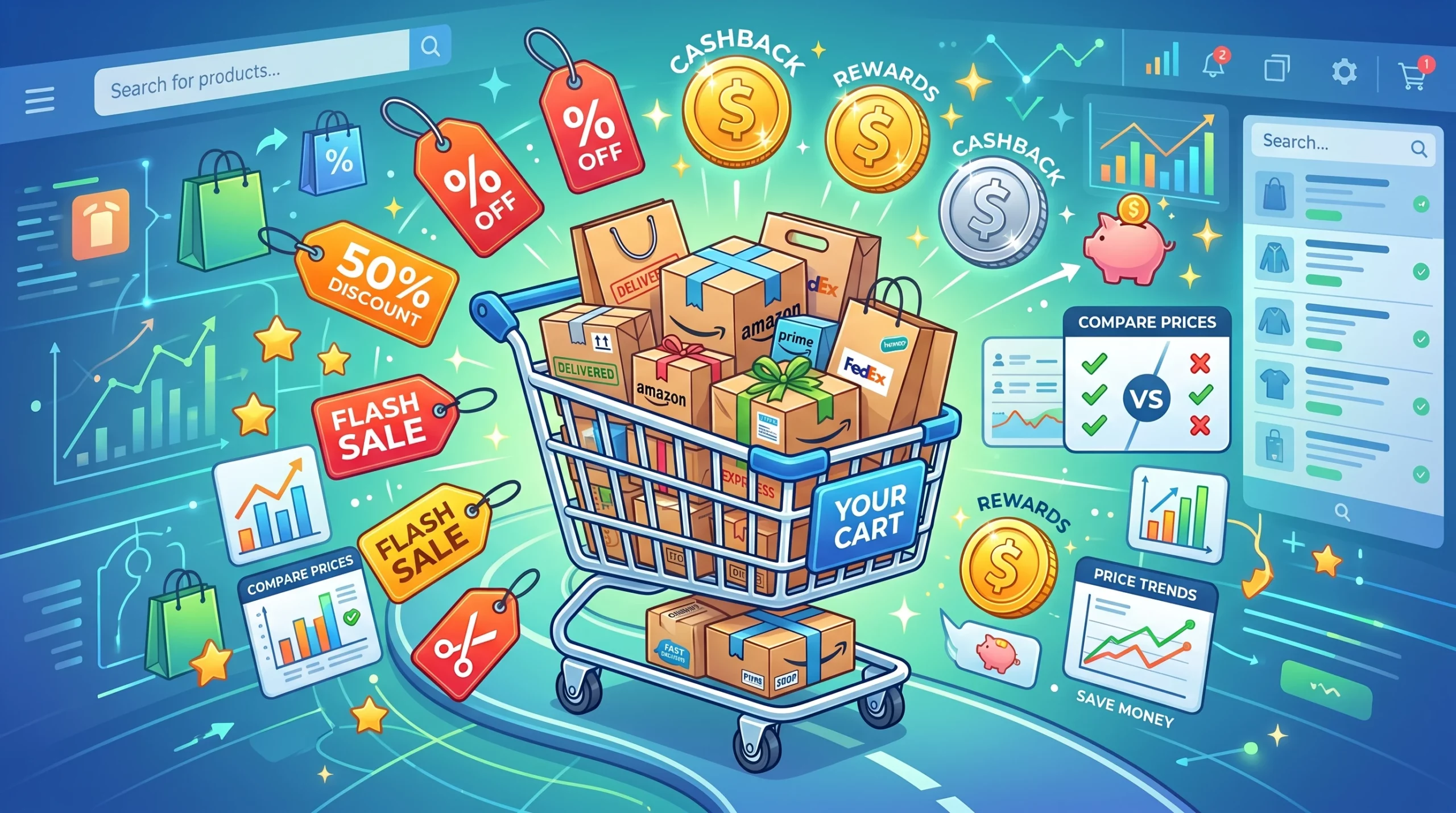
Every money-saving extension promises the same thing: install it, shop as usual, and keep more of your money. In practice, each one does a single job, and the jobs are different enough that a tool good at one can be useless at another.
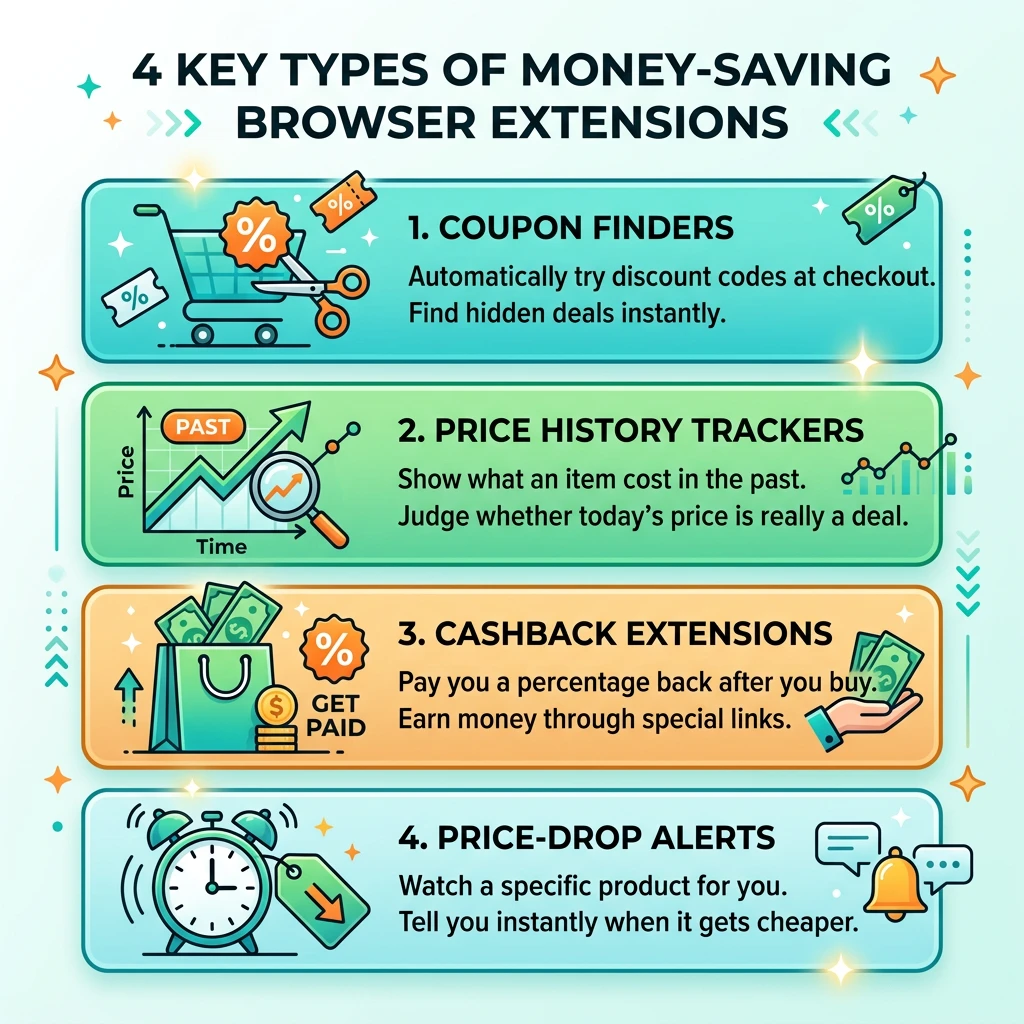
There are four jobs worth sorting by:
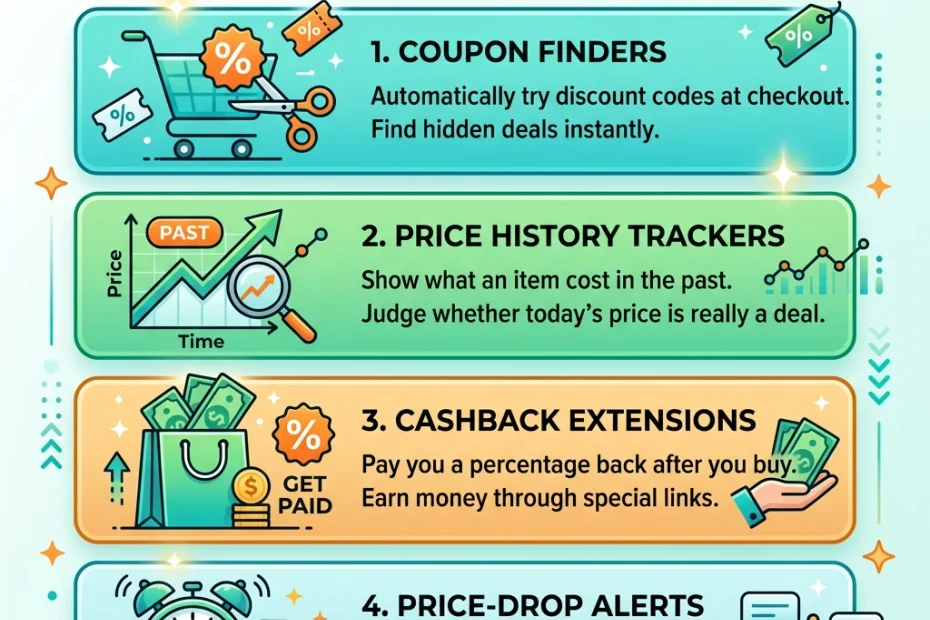
- Coupon finders try discount codes at checkout.
- Price history trackers show what an item cost in the past, so you can judge whether today’s price is a deal.
- Cashback extensions pay you a percentage back after you buy through their link.
- Price-drop alerts watch a product and tell you when it gets cheaper.
For each job, three questions decide whether the tool deserves a slot in your browser. How automatic is it really, or does it still need you to click, wait, and check? What permissions does it ask for? And how does it pay for itself, since the extension is free and the developers are not volunteers?
Extensions are good at the repetitive parts of saving money: testing twenty codes, remembering a price, watching a page at 3 a.m. They are bad at the judgment parts. They cannot tell you whether you need the item, whether a “40% off” tag sits on an inflated base price, or whether the seller is reputable. The magic stops where the decision starts.
If you want the habit-level advice that sits underneath all of this, the earlier post on saving money online shopping covers it. This one is about the tools.
Coupon finders or the checkout-page gamble, reviewed
A coupon finder activates when you reach checkout. It tries codes from its database, one after another, and keeps whichever gives the biggest reduction. Honey, Capital One Shopping and Karma-style tools work this way, and the pitch is hard to beat: the extension does the typing, you keep the savings.
How automatic is it? Very, at the moment of checkout. You click a button, watch codes cycle through, and see a new total. Before that moment it does nothing for you.
Where it disappoints: the code database is only as good as what shoppers and merchants have submitted. Many stores have no working codes at all. On those, the extension cycles through a list of expired codes, finds nothing, and shows a cheerful “no savings found” message. Picture a kettle at $60 with a real code that takes 10% off: that is $6 saved, which is a perfectly good result for a few seconds of waiting. Now picture the same extension on a store that only ever offers a code for first-time email subscribers: nothing happens, and you are no worse off, apart from a short delay.
The catch nobody mentions in the store listing: a coupon extension that activates at checkout can also claim the affiliate credit for that sale. Affiliate credit is how bloggers and reviewers who sent you to the store get paid. Coupon extensions have been publicly accused of replacing that credit with their own, which means the extension earns on a sale it did not influence. That does not cost you anything directly, but it tells you whose interests the product is built around.
Verdict: worth having for the occasional win, with low expectations. Think of it as a lottery ticket that costs nothing and pays a few dollars now and then. Do not shop at a store because the extension says it has codes.
Price history trackers find out if that “sale” is a sale
This job is the most useful of the four, and the least glamorous. A price history tracker adds a chart to the product page showing what the item has cost over weeks or months. Keepa and the CamelCamelCamel extension (the Camelizer) do this for Amazon listings. Other tools extend the idea to a wider range of stores.
Why it matters: retail “sales” are often a price that went up shortly before the event and came back down. A chart shows this in a few seconds. Say a pair of headphones is marked “30% off,” and the chart shows the price has hovered at that same level for three months. The sale is a normal price with a banner on it. Equally, if the chart shows the lowest price in a year, you can buy with confidence.
How automatic is it? Fairly. The chart appears on its own when you open a product page. You still have to look at it and interpret it, which takes about ten seconds once you know what you are looking at. Learn to spot three things: the typical price, the lowest price, and how often the price drops.
Permissions: these extensions generally need access to the shopping sites they chart, which is reasonable. Check whether the permission covers only those stores or every site you visit.
Verdict: the best first install for most shoppers. It does not find you a discount. It stops you from paying full price for a fake one, and that protects more money over a year than any code.
Cashback extensions are free money with strings attached
Cashback extensions such as Rakuten pay you a share of what you spend. You activate the extension on a store, buy as usual, and the store pays the extension’s company a commission, part of which goes to you. The money arrives later, usually after a confirmation period, and often only once you reach a payout minimum.
How automatic is it? Mostly. Many extensions pop up a reminder when you visit a participating store, and you click to activate. Some activate by themselves. Either way, you should confirm that the tracking worked, because a missed activation means missed cashback.
The strings:
- Tracking can break. Ad blockers, other extensions and some browser privacy settings can interfere with the tracking link. Check that the sale appears as “pending” in your account soon after you buy.
- Codes can cancel it. Many cashback programs state in their terms that using a coupon code from another source can void the cashback. Read the terms for the store you are using before you stack the two.
- Rates change. A store’s cashback percentage can differ from day to day. Look at the rate before you click through.
- Returns reduce it. If you return the item, the cashback is usually reversed.
Verdict: worth installing if you buy online regularly from the same stores. The percentage is modest on each order, but it is money you receive for doing nothing you were not already doing. The honest summary is that it is real, small, and slow.
Price-drop alerts let the extension do the waiting
Price-drop alerts suit anything you want but do not need today. You add the product, set a target price if the tool allows it, and wait for an email or a notification. Keepa and CamelCamelCamel do this for Amazon, and Honey’s Droplist feature does something similar for supported stores.
How automatic is it? The most automatic of all four, because after the first setup you do nothing. That is also the weakness: an alert only helps if you set it up before the price dropped, and only if you act on it.
A practical way to use it: set the target price using the history chart, not wishful thinking. If a coffee grinder has dipped to $45 twice in the past year and normally sits at $65, set the alert near $45. Setting it at $25 means the alert never fires and you forget it exists.
Limits: the tool watches the stores it supports and sometimes only specific sellers. A drop at a store it does not watch will not trigger anything. Stock also matters, because a great price on something sold out is not a price.
Verdict: the best fit for people who dislike hunting for deals. Add the item, set a sensible target, and carry on with your week.
How these extensions make their money, and what permissions you are handing over
A free extension has a business model, and it is worth knowing which one before you install it. The common ones are:
- Affiliate commissions. Cashback and coupon extensions earn a commission when you buy through them. This is the most common model and is not harmful on its own, but it does mean the extension benefits when you buy, not when you save by not buying.
- Data. Some extensions collect browsing or purchase data and sell it in aggregate or use it for market research. The privacy policy should say whether this happens. If it does not say clearly, treat that as a bad sign.
- Premium tiers. Some price trackers offer free basic features and charge for advanced ones such as longer history or more alerts. This model is easy to understand, because you are the customer.
- Advertising or sponsored placements. Some tools show promoted deals in the extension. Check whether sponsored results are labeled.
Permissions appear in the browser’s install prompt. The one that matters most is usually some form of “read and change your data on all websites.” A coupon finder needs to see checkout pages, so it needs some access, but “all websites” is broader than “the shopping sites I use.”
Before you click install:
- Read the permission prompt, not just the star rating.
- Open the extension’s settings and look for an option to limit site access, such as running only when you click it or only on specific sites. Chrome and other browsers let you restrict this in the extension management page.
- Read the privacy policy for the words “sell,” “share,” and “third parties.”
- Check the developer name. A known company with a support page is easier to hold accountable than an anonymous publisher.
- Look at recent reviews, not the all-time average, for complaints about changes in behavior after an update.
The permissions you grant today also apply after an extension changes hands or updates. Review your installed extensions every few months and remove the ones you have not used.
The two-extension setup worth running, and how to test any new one in a week
For most shoppers, two extensions cover the real value without piling up permissions:
- A price history tracker with alerts. It tells you whether a price is good and watches the ones that are not yet. It earns its place on every product page you visit.
- A cashback extension for the stores you use repeatedly. It pays you a small amount on purchases you were going to make anyway.
A coupon finder is optional. If you add one, remember the cashback terms about codes, and decide per store which of the two you want to use.
Fewer extensions also means fewer things reading your pages, fewer clashes between tools, and a browser that stays fast.
A one-week test for any new extension
Day 1: set the limits. Install it, read the permissions, and restrict site access if the browser allows it. Write down what you expect it to save you.
Days 2 to 4: compare totals. On any purchase you were going to make anyway, check the price and the checkout total with and without the extension. A private window without extensions gives you a fair baseline. Note whether the extension changed anything.
Days 4 to 6: check the plumbing. For a cashback tool, confirm the purchase shows as pending in your account. For an alert tool, confirm that a test alert arrives and that it is not going to spam you. For a coupon tool, note how many stores it actually had codes for.
Day 7: add it up. Count the money saved and compare it with the nuisance: slower pages, constant pop-ups, extra emails. If the saving is a few dollars and the nuisance is daily, remove it. If it saved real money without friction, keep it and set a reminder to review it in three months.
Where custom AI shopping assistants fit in next
Browser extensions are rigid by design. A coupon finder tries codes, a tracker draws a chart, and neither can answer “which of these three blenders is the better value for a small kitchen?” That is the gap a custom AI shopping assistant could fill.
An assistant built on a custom GPT can take a product link or a short list, compare features against what you say you need, point out which claims in a listing are marketing rather than specification, and suggest what to check in reviews. Packaged as a plugin or browser extension, it could sit beside the tools above and do the part they cannot: help you decide.
It has the same questions to answer as every tool in this article: what does it do automatically, what does it need to read, and how does it earn its keep? An assistant that reads every page you visit deserves the same permission scrutiny as a coupon finder. How one performs against the extensions above is a question for a proper comparison, which is the plan for the next round.
Tell us in the comments which extension you swear by (or regret installing), and come back for the next round of tests, including how a custom-built AI shopping assistant stacks up against these tools.
Discounts
Coupons
Deals
Special Offers
Promotions
Customer Service Experiences In Online Shopping on Amazon